
You spend an hour filling out an online job application, click submit, and then wonder why you never hear back. The problem might not be your qualifications. It might be something as simple as uploading a resume file that was too large, entering your phone number in the wrong format, or leaving a required field blank because you didn't notice the asterisk.
Online job applications are gatekeeping systems. They're designed to filter candidates based on specific data points, and the system has no tolerance for errors that a human screener might overlook. Getting through this digital gate requires precision, not just qualifications.
Before You Start - Preparation That Saves Time
Create a master document with all your information in one place. You'll need this information repeatedly across different applications, and having it ready prevents you from hunting through certificates every time you fill a form.
Your master document should include: Full legal name (exactly as it appears on your Aadhaar), date of birth, phone number, email address, permanent address with pin code, Aadhaar number, PAN number, passport number (if applicable), all educational qualifications with institution names, years, and percentage/CGPA, all certifications with issuing bodies and dates, and your emergency contact details. Keep this document on your phone and computer so it's always accessible.
Prepare digital copies of all documents before you need them. Scan or photograph your certificates, marksheets, Aadhaar, PAN, and passport photo. Save them in two formats: PDF (for uploading to forms that require PDF) and JPEG (for forms that require image files). Name each file clearly: "10th_Marksheet.pdf," "Aadhaar_Card.pdf," "Passport_Photo.jpg." When you need to upload during an application, you grab the right file instantly instead of scrambling to scan documents while a session timer counts down.
Check file sizes. Most application portals have upload limits - typically 200KB-2MB for documents and 50KB-500KB for photos. If your scanned documents are too large (a high-resolution scan of a marksheet can be 5-10MB), compress them using free tools like smallpdf.com or your phone's built-in image compression. Having pre-compressed files ready prevents the frustrating moment when you try to upload and the form rejects your file for being too large.
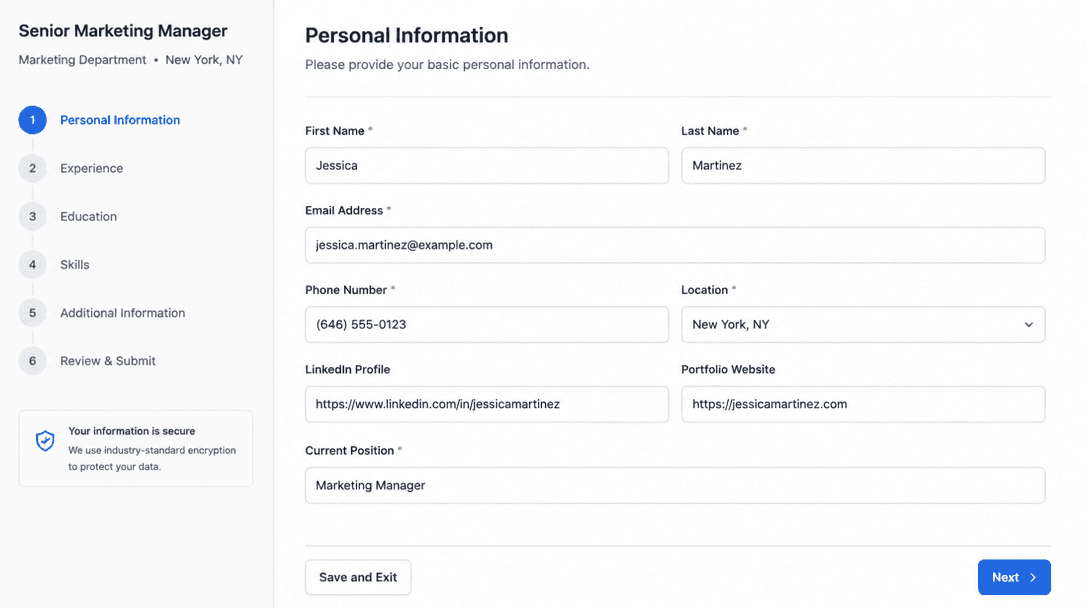
Close-up of a completed online application form on a screen
Filling Each Section Correctly
Personal information: Use your legal name - the name on your Aadhaar card and educational certificates. If your first name on your 10th marksheet is "K. Rajesh" but your Aadhaar says "Rajesh Kumar," use the Aadhaar version and note the discrepancy if there's a space for it. Inconsistent names across documents causes verification problems during the hiring process.
Phone number: Enter without spaces, dashes, or country code unless the form specifically asks for it. "+91-98765-43210" might get rejected if the system expects "9876543210." Check the placeholder text in the field - it usually shows the expected format.
Email: Use a professional email you check regularly. Don't use a shared family email or one you created in 8th standard with a nickname. If the company replies to your application and you don't see it for two weeks because you never check that email, you've lost the opportunity.
Education details: Enter percentages in the format the form expects. If it asks for "percentage," enter "72" not "72%" or "72.5/100." If it asks for CGPA, enter "7.2" not "7.2 out of 10." Forms with dropdown menus for degree/certification - scroll through the full list before selecting. "Diploma in Mechanical Engineering" and "Diploma - Mechanical" might both appear, and selecting the wrong one could miscategorize your application.
Year of passing: Use the year on your final certificate, not the year you started the course. If you completed your diploma in April 2025, the year of passing is 2025, even if you started in 2022.
Work experience: For freshers, most forms allow you to enter "0" years or select "Fresher" from a dropdown. If the form has a mandatory field for "current employer," enter "Not Applicable" or "Fresher." Don't leave it blank if it's required - a blank required field will prevent form submission entirely. If the form asks for "current CTC," enter "0" or "Not Applicable" - don't inflate this number hoping for a higher offer. Companies verify current CTC during background checks.
Document Upload - Getting File Formats Right
Resume upload: PDF is universally safe unless the form specifies otherwise. Keep your resume under 1MB. If the upload fails, check the file size first - it's the most common cause of upload errors. Name the file "Firstname_Lastname_Resume.pdf" - clear file naming helps HR teams organise applications.
Photograph upload: Use a recent passport-size photo with white background. The common specifications are: JPEG format, dimensions 200x200 pixels to 600x600 pixels, file size under 200KB. If your photo is too large, resize it using any free image editing tool. Ensure the photo is clear, well-lit, and shows your face from the forehead to the chin - many government application forms specify exact face-to-frame ratios.
Signature upload: Some forms require a scanned signature. Sign on a white paper with a black pen, photograph it in good lighting, crop the image tightly around the signature, and save as JPEG. File size requirement is usually very small - 50KB-100KB. A blurry or faint signature gets flagged for verification issues.
Certificate uploads: If the form asks for each certificate separately, upload exactly what's requested - don't combine multiple certificates into one file unless instructed. If it asks for "consolidated marksheet," upload that specific document, not individual semester marksheets. Reading the upload instructions carefully prevents mismatches that cause processing delays.
Common Errors That Silently Disqualify Applications
Not completing optional fields that strengthen your application. Many forms mark experience, certifications, and skills sections as "optional." Freshers often skip these entirely because they think "optional" means "not important." In reality, optional fields are screening differentiators - candidates who fill them get a richer profile in the system, making them more likely to be shortlisted. If you have relevant certifications, workshop experience, or language skills, fill in every optional field that applies.
Typos in your phone number or email. If your phone number has one wrong digit, the company literally cannot contact you. Before submitting any application, read your phone number and email address aloud, checking each character against what you've entered. This ten-second verification prevents the most common and most devastating application error.
Applying to the wrong location or role. Large companies like TCS, Infosys, or even manufacturing giants list multiple openings on the same portal. Accidentally applying for a role in Hyderabad when you wanted Chennai, or for a Senior position when you're a fresher, wastes your application and might flag you in the system as an inattentive candidate.
Submitting without reviewing. Most application portals show a review page before final submission. Read every field on the review page. Check that your educational details match your certificates exactly, your contact information is correct, and the right files were uploaded. Clicking "Submit" without reviewing is like mailing a letter without checking the address - it might reach the right destination, but you're leaving it to chance.
Keep a Record of Every Submission
Take a screenshot or save the confirmation page after every submission. Note the application reference number, the date of submission, and the role applied for. Store this in your job application tracker. When following up with the company, having your reference number ready shows organisation and makes it easy for HR to locate your application. "I applied for Application Reference XXXX on [date]" gets a faster response than "I applied last week for some position on your website."